
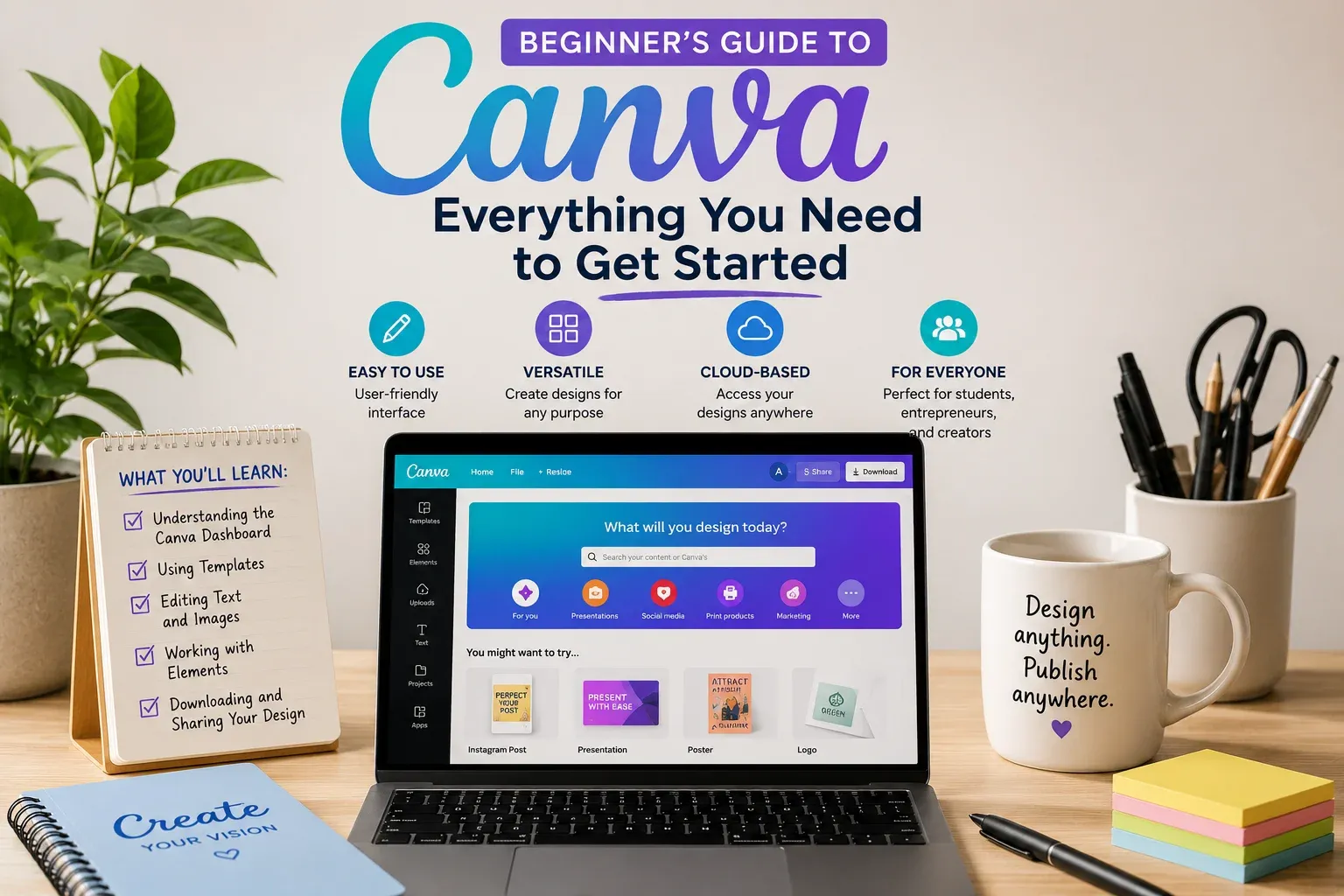
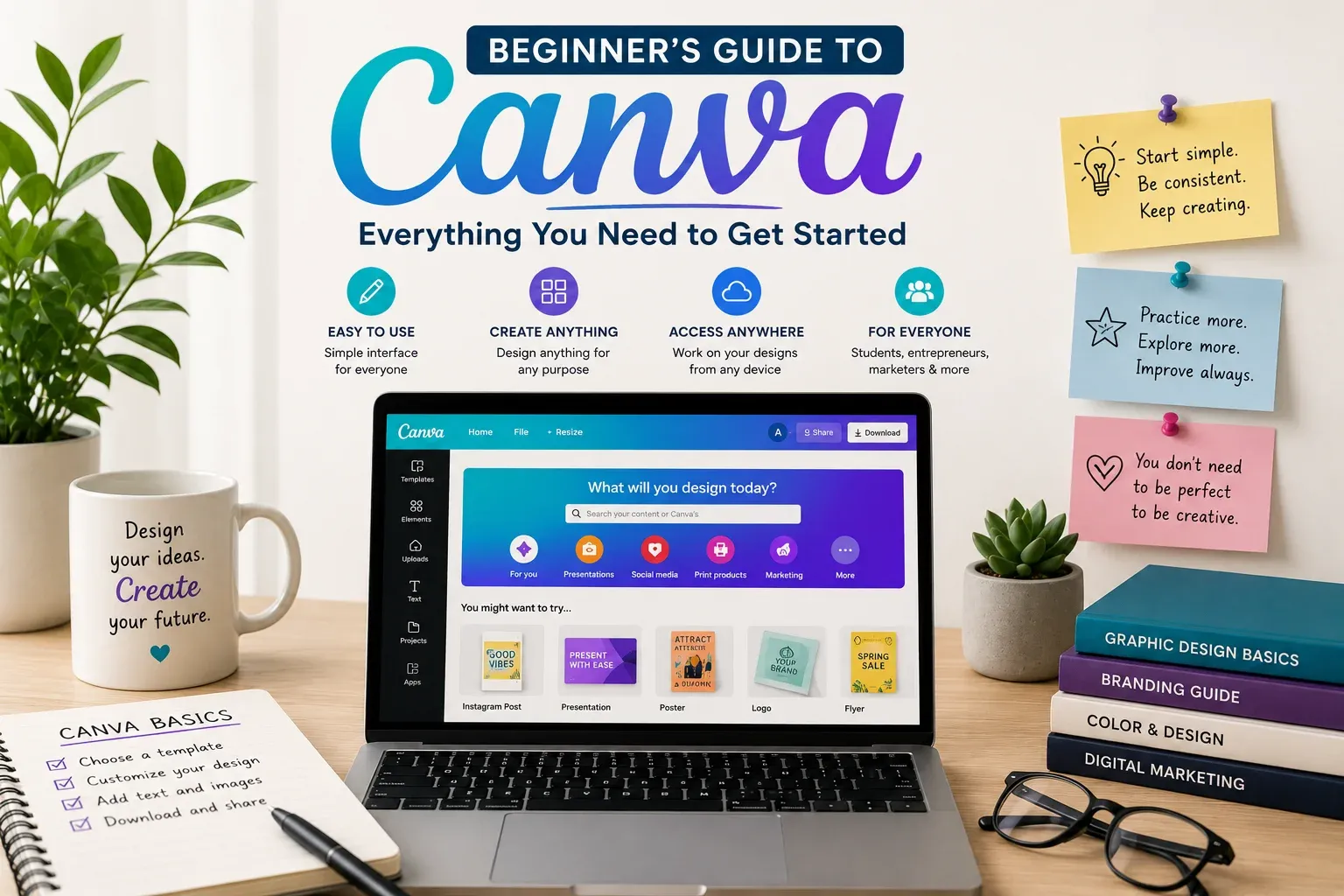
From crafting a presentation or social media post to writing a professional resume, you’re likely aware of or have seen a Canva reference or two. It’s widely regarded as one of the best-in-class design tools around the world and for good reason. The best part? You don’t have to be a graphic designer to get to it. Students and freelancers, entrepreneurs, content creators, and other creative kinds make attractive designs every day with Canva — without having to learn software.
So if you’re a little new to Canva, this guide should give you a way to get your head around what it is, what it has to offer, and to find your start, and start feeling more comfortable when designing.
What Is Canva?
Canva is a graphic design platform online, designed to encourage you to create professional-looking designs with its drag-and-drop functionality. Instead of beginning from a blank page, Canva has thousands of templates for you. Whether you’ll be using the Canva design service on your computer or its mobile app, it is flexible enough to find you anywhere on the world wide web.
- Is beginner-friendly.
- Provides thousands of free templates.
- Features for mobile and desktop devices.
- Automatically saves designs online.
- Makes projects possible as team players!
- Supports pictures, videos, presentations and documents.
For a lot of casual designers, Canva is the place most of us begin learning design.
NovaBaze Insight 💡 Good design is not using any expensive bells and whistles. It’s really about having your words get heard. And even the simplest designs can look professional when they’re clean and neat, and easy to understand.
What Can You Create With Canva?
The power of Canva is its versatility. You can create:
- Social media posts.
- Presentations.
- Posters.
- Flyers.
- Certificates.
- Business cards.
- Logos.
- CVs and resumes.
- YouTube thumbnails.
- Infographics.
- Invitations.
- Brochures.
As you age and get more experienced, you’ll discover more strategies to use it as you improve, get better.
Creating Your First Design
Getting started is simple. After creating your free account:
- Choose the design you want to create.
- Select the template that meets your goals.
- Replace their sample text with your own.
- Change colors and fonts when required; paste your own pictures, or choose from Canva’s library.
- Download your finished design.
NOTE: Templates can be customized. Adding your own thinking allows a little personal touch to be added to your work.
Learn the Basic Canva Tools
You don’t have to be familiar with every detail on the first day. Embrace these basics:
Text. Headings, paragraphs and captions should be added. Pick readable fonts. Do not have too many fonts in one design.
Images. You can upload your own images and pick your own ones from Canva’s free image selection. Use high-quality images whenever you can.
Elements. The icons, shapes, lines, stickers, and illustrations. Use them to further your message — not distract from it.
Colors. In most designs, keep it between two to three main colors. Just don’t want too many colors to mess up your work.
Keep Your Designs Simple
We mistake ourselves with too many effects, fonts and graphics because that’s the way it is all the times when the beginners get so confused. Simple designs seem to be more professional.
- Leave enough empty space.
- Use clear headings.
- Keep text easy to read.
Never underestimate: Less is often more.
Common Beginner Mistakes
Get better at avoiding these habits as you learn Canva:
- Using too many fonts.
- Filling every empty space.
- Choosing low-quality images.
- Ignoring alignment.
- Using colors which are difficult to read.
- Copying templates with no alterations.
Little changes make a big difference.
Can Canva Help You Earn Money?
Yes. Many freelancers are on Canva to build:
- Social media graphics.
- Business flyers.
- Presentation slides.
- Marketing materials.
- Digital products.
Others provide Canva design services for local businesses, schools, churches, and organizations. Canva can provide a little income stream but not sufficient; but if practiced properly — especially when combined with creativity and excellent communication skills — this kind of skill may add value to the business.
Is Canva Enough for Professional Design?
Canva is strong, but it should not stand in for advanced software in all cases. Design professionals use tools like Adobe Photoshop or Illustrator for more advanced designs. But for more everyday designs, Canva still offers great features for the vast majority of students, entrepreneurs and small businesses.
What Most Beginners Get Wrong
There’s a misconception that good design is created from expensive software. In reality, good design is based around balance, spacing, color, and simple communication. Canva simply makes those principles easier to apply. Regardless of software used, these fundamentals will help you design better.
Canva Beginner Checklist
Before actually downloading your design, check:
- ✔ Is the text easy to read?
- ✔ Are the colors consistent?
- ✔ Have I used high-quality images?
- ✔ Does the design appear clean and not cluttered?
- ✔ Have I personalized the template with content of my own?
If you said “yes” to these questions, you are already working on stronger designs.
Final Thoughts
Every designer starts somewhere. Your first Canva project will not be perfect—that’s fine. However, the important thing is to continue practicing. Play around with all sorts of layouts. Study designs you admire. Learn from your mistakes. In time, you become something more confident, with your artistic tendencies in your own way.
Just remember: Canva is a tool. All designs come to life just out of your imagination.
Frequently Asked Questions
Is Canva free? Yes. Canva is free with a lot of templates, images and design tools. It’s available in a paid version with additional features for those interested in an advanced tool.
Do newbies find Canva easy to learn? Yes. Canva, which was created for beginners, is designed with an easy drag-and-drop interface. Designing is simpler compared to classic design software.
Can I use Canva for school projects? Absolutely. Students use Canva frequently to compile presentations, posters, reports, certificates and other academic materials.
Will Canva give me the tools to begin freelancing? Yes. A lot of freelancers use Canva on behalf of their clients to create social media graphics, flyers, presentations and similar.

